Enable real-time user and group provisioning from Google Workspace to Bifrost Enterprise.
SCIM keeps Bifrost in sync with Google Workspace in real time - new users are provisioned, deactivated accounts are suspended, and group memberships are updated without waiting for the next background sync cycle.
Complete SSO using OIDC before setting up SCIM. The Google Workspace OIDC integration provides the OAuth credentials and Directory API access that SCIM provisioning builds on.
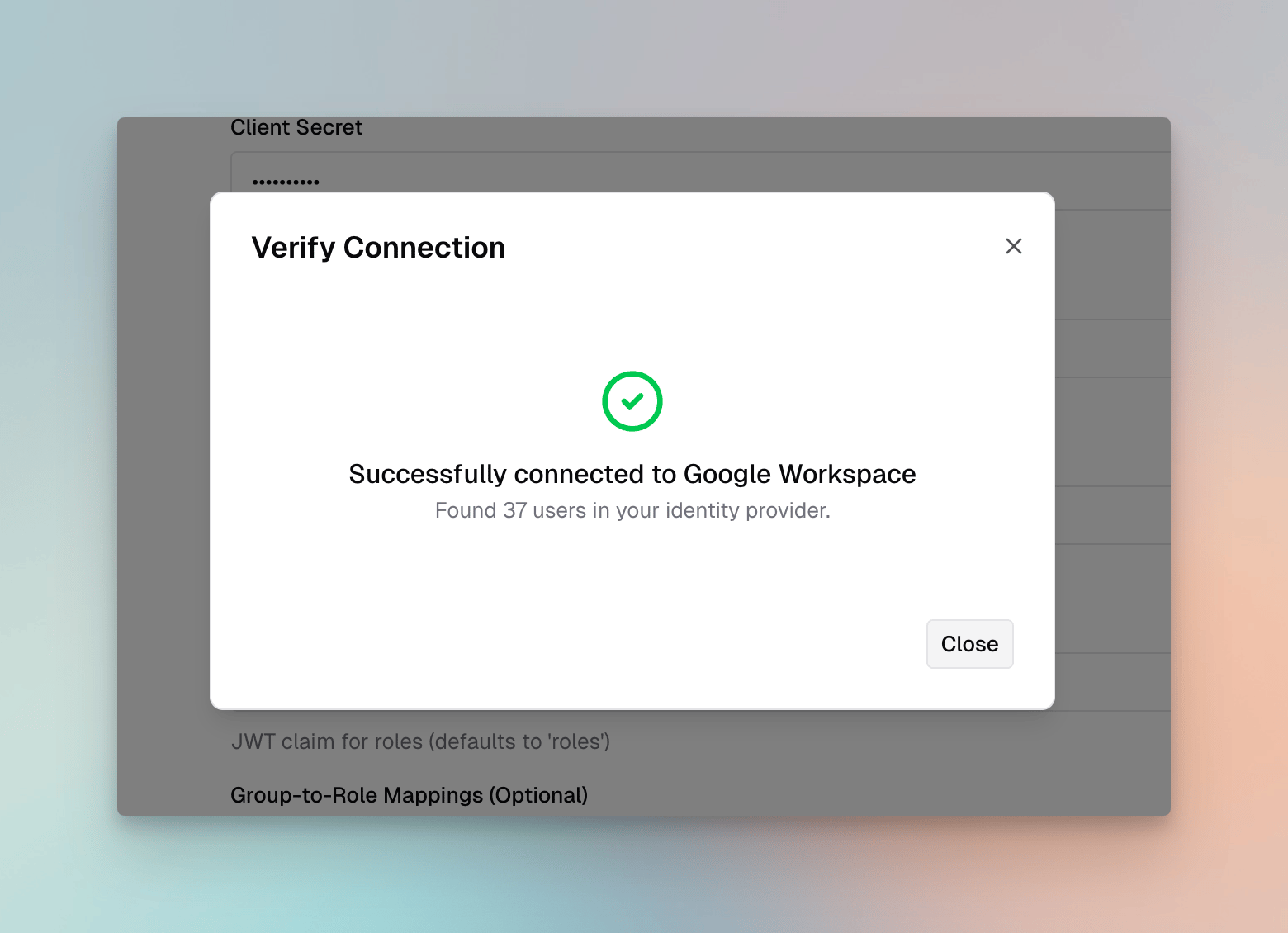
The Directory API sync requires a Google Cloud service account with domain-wide delegation, configured in Steps 3 and 4 of the OIDC guide.If you skipped that section, return to the OIDC guide and complete it before continuing.
2
Confirm the scopes are authorized
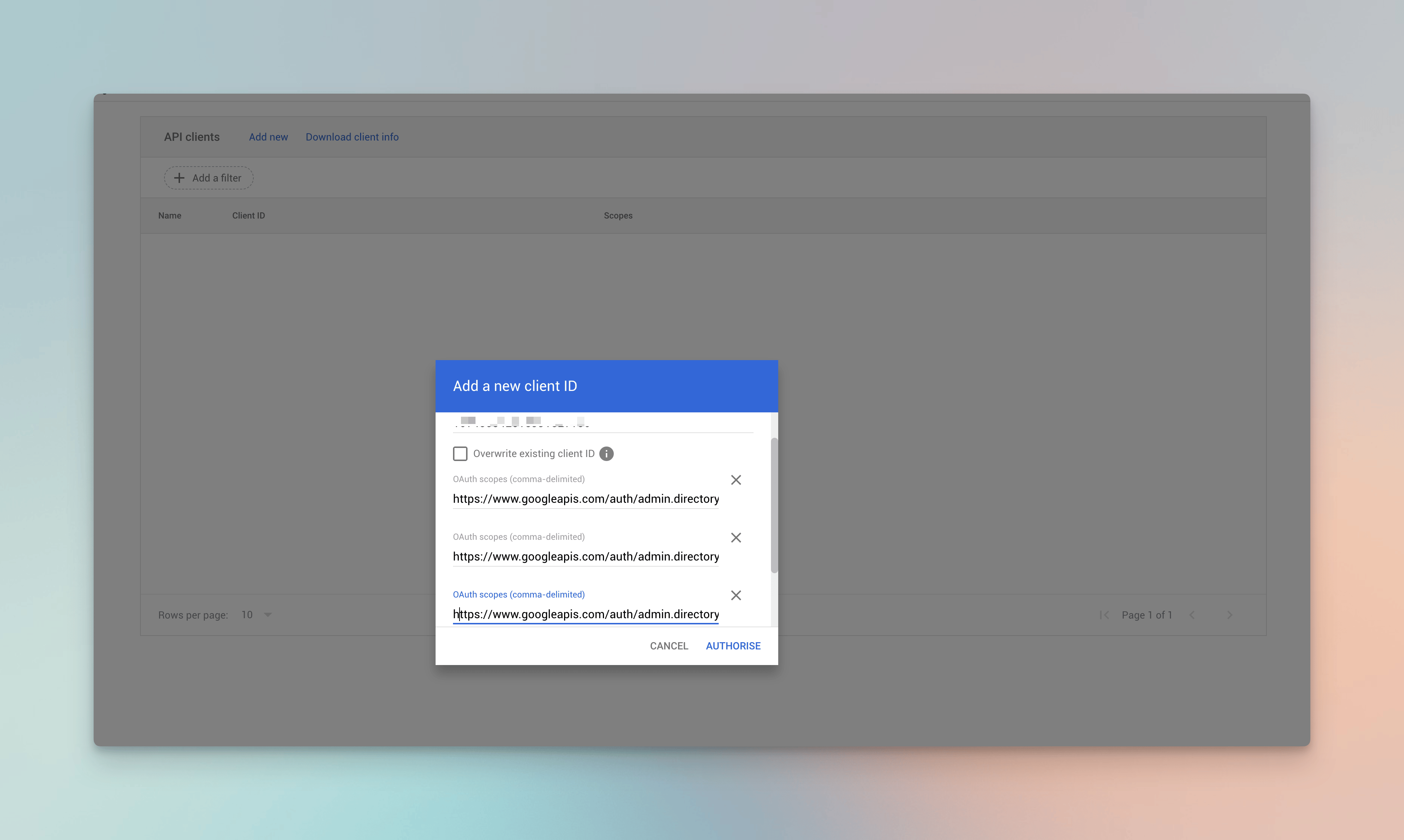
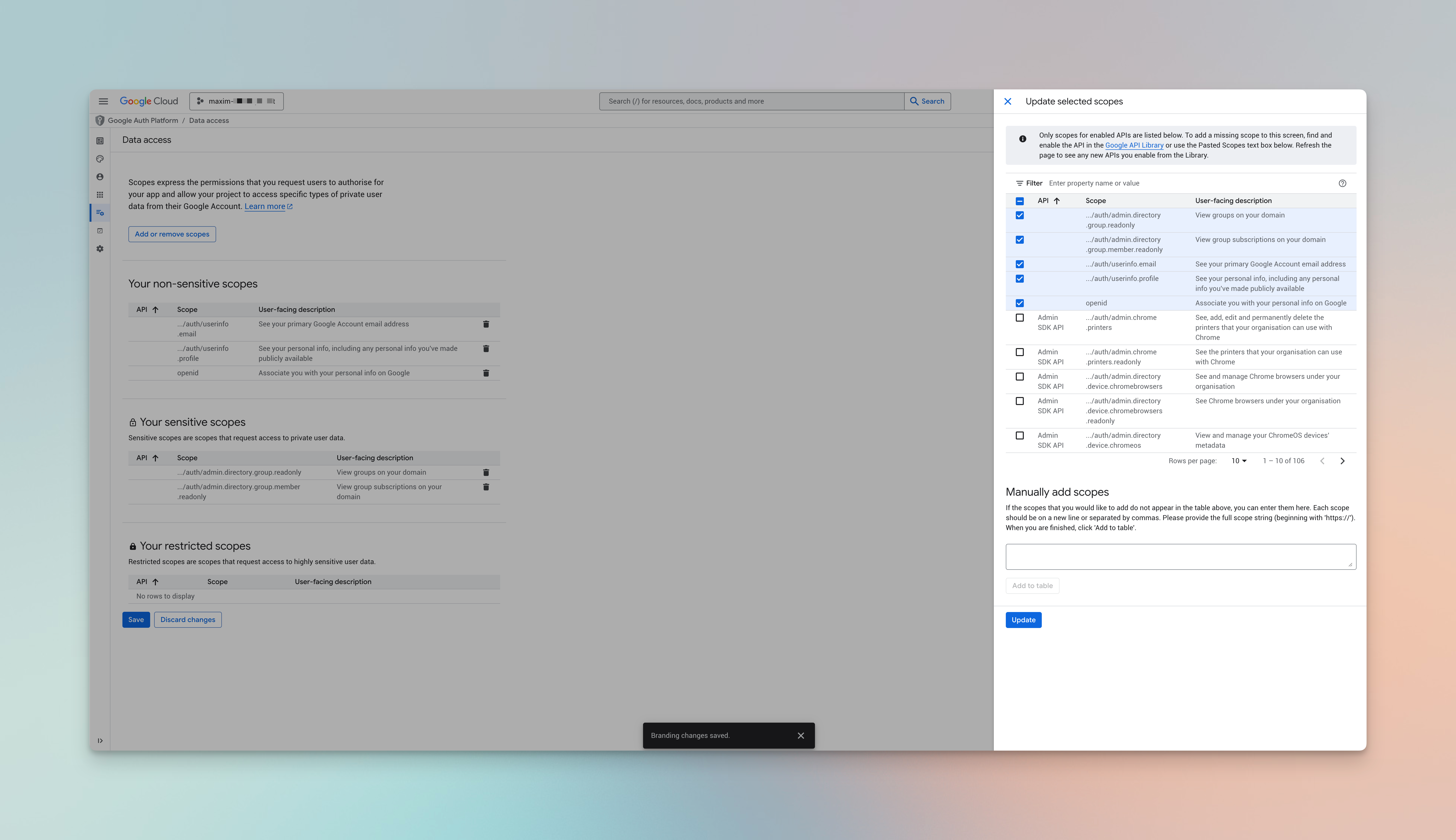
In the Google Admin Console, go to Security → Access and data control → API controls → Manage Domain Wide Delegation.Verify the service account’s Unique ID is listed with all three scopes:
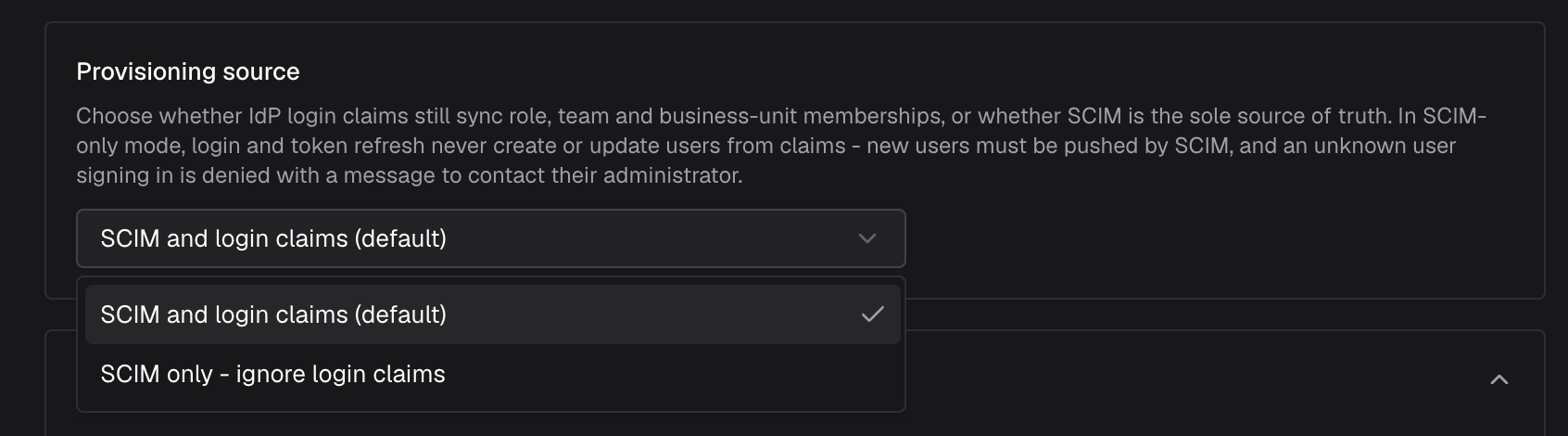
The provider configuration includes a Provisioning source setting that controls whether IdP login claims still provision users, or whether SCIM is the sole source of truth:
The Provisioning source setting in the provider configuration - choose between SCIM and login claims (default) or SCIM only.
Option
Config value
Behavior
SCIM and login claims (default)
both
Both SCIM and IdP login / token-refresh claims create and update users, roles, teams, and business units.
SCIM only - ignore login claims
scim
SCIM is the sole source of truth. Login and token refresh never create or update users from claims - new users must be pushed by SCIM, and an unknown user signing in is denied with a message to contact their administrator.
Choose SCIM only when provisioning must be fully controlled by your IdP’s SCIM app and login-time claim changes should never alter membership. Leave it on the default SCIM and login claims if users are also provisioned just-in-time on first login.This maps to the claimsSyncMode config key (both or scim) and is inert when SCIM Provisioning is disabled - claims always sync then.
To sync users immediately without waiting for the next background sync, go to Governance → User Provisioning → Import Users.Filter by a Google Workspace group, click Preview, and confirm the expected users appear.Click Import to bring them into Bifrost with the roles assigned by your attribute mappings.
Import Users - preview users from a Google Workspace group before importing them into Bifrost.
2
Verify in Bifrost
After the sync or import:
Go to Governance → Users to see provisioned users and their assigned roles
Go to Governance → Teams to see teams populated from Google Workspace groups
Go to Governance → Business Units to see business units resolved from group or attribute mappings
OIDC provisioning - users are provisioned in Bifrost on their first successful login. Role and team assignments are derived from the JWT claims at login time.Background reconciliation - every Directory sync interval (default 24 hours), Bifrost reconciles all users in the directory against the current state in Google Workspace. This catches deactivations, group membership changes, and new users who have not yet logged in.Session refresh - when a user’s session expires, Bifrost refreshes it with Google. If the user’s Google account has been suspended or deleted, the refresh fails and Bifrost removes the user.
Users not appearing in Import Preview - confirm the service account has the three Directory API scopes authorized in Domain-Wide Delegation. Check that the adminEmail is a Super Admin or has the User Management Admin role.Group memberships not syncing - verify GroupMember.Read.All scope is included in Domain-Wide Delegation. Groups must be assigned to the Bifrost application in the Google Admin Console for the groups claim to appear in the token.Sync completes but roles are wrong - review your Attribute-to-Role Mappings in the provider settings. Use Discover Claims to inspect the live claims and confirm the group names match your mapping values exactly.
Was this page helpful?
Assistant
Responses are generated using AI and may contain mistakes.