

If your Allowed Headers are already set to
*, you can skip this note. If not and you face issues integrating Bifrost with Claude Desktop, try switching to * or adding the specific headers required by your client. By default, Bifrost whitelists: Content-Type, Authorization, X-Requested-With, X-Stainless-Timeout, and X-Api-Key.How It Works
The Claude Desktop App has two tabs with different routing behavior:
This guide covers configuring the Code tab for inference routing and the Chat tab for MCP tool access.
Setup
1. Configure settings.json
Open~/.claude/settings.json and add the Bifrost endpoint and API key under the env key:
2. Start a New Session
Close any active session in the Code tab and start a new one for the settings to take effect.Native App Routing via the Gateway Provider (Developer Mode)
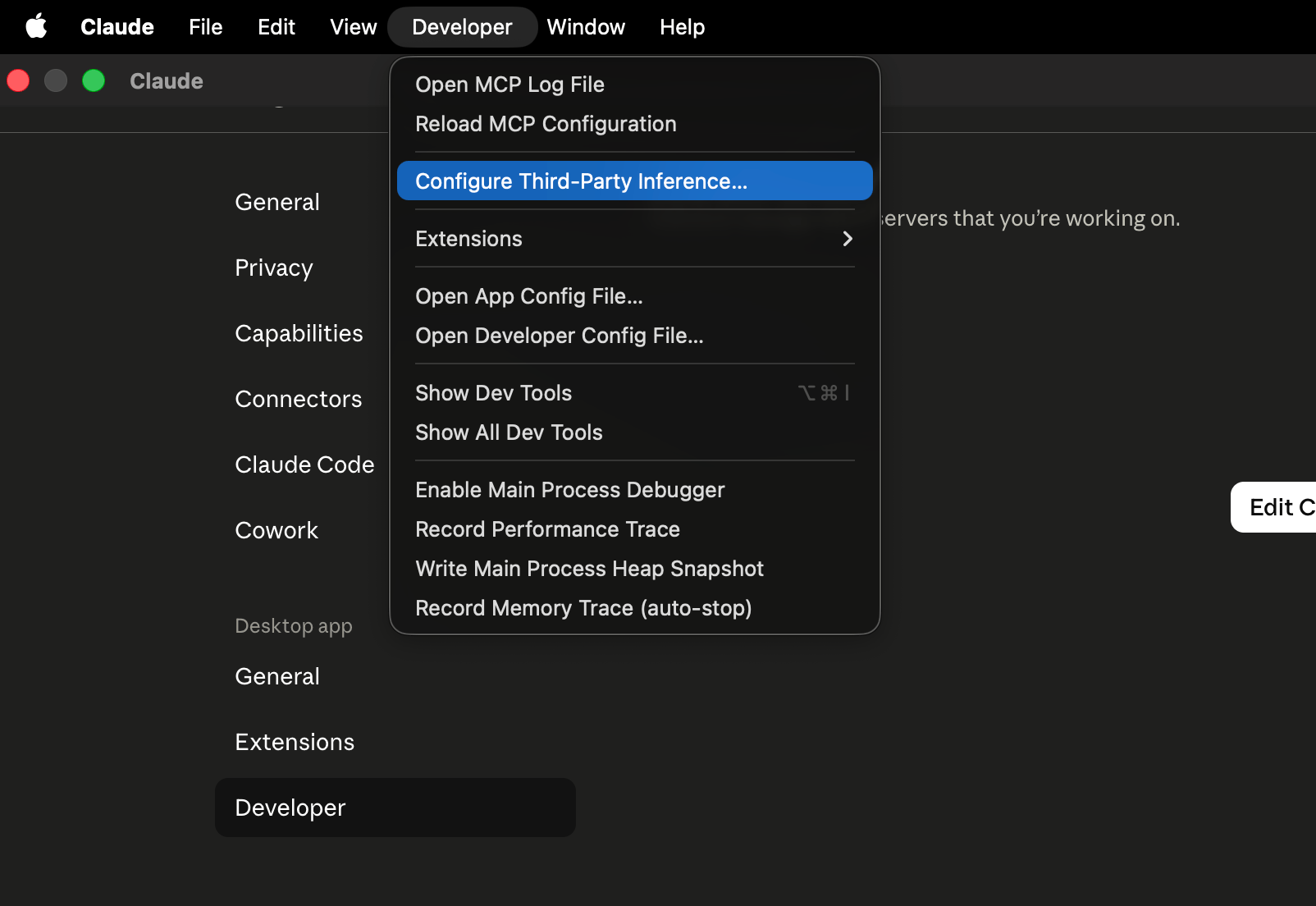
The steps above route the Code tab through Bifrost. The Claude Desktop app can also route its native inference through a custom gateway directly, without touching~/.claude/settings.json. This is configured in the app’s Developer settings by setting the inference provider to Gateway.
The Developer settings and the Gateway inference provider are surfaced by Claude Desktop and may require Developer mode (or managed/enterprise enablement) to appear. If you don’t see them, this flow isn’t available in your build.
1. Enable Developer Mode and Select Gateway
- Open Settings and enable Developer mode.
- Go to the Developer tab and find the Inference provider setting.
- Set the inference provider to Gateway.
2a. Authenticate with a Virtual Key (Direct)
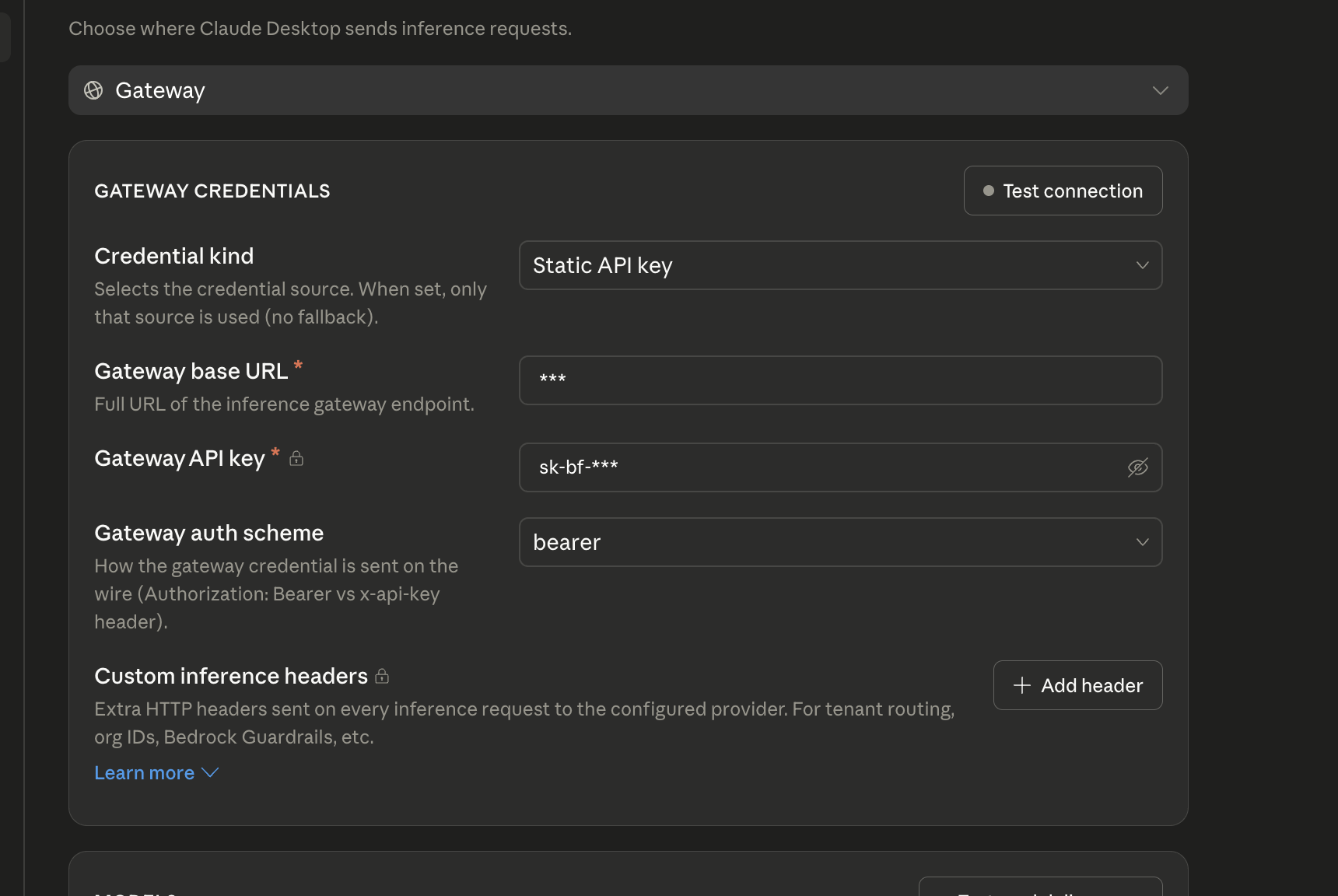
Fill in the gateway fields to point Claude Desktop at Bifrost:
A few things to get right:
-
Use the
/anthropicpath. Claude Desktop appends/v1/messagesto the base URL, and Bifrost serves the Anthropic Messages API under/anthropic(so requests land on/anthropic/v1/messages). -
The virtual key is the credential. With either auth scheme, set the key to your Bifrost virtual key — Bifrost recognizes a virtual key sent as
Authorization: Bearer <vk>orX-Api-Key: <vk>.
2b. Authenticate with SSO
Instead of a static virtual key, you can set the gateway auth scheme to Interactive sign-in and have Claude Desktop authenticate against your identity provider. The Gateway base URL is the same as in 2a (https://<your-bifrost-host>/anthropic, including the /anthropic suffix) — only the auth scheme changes.
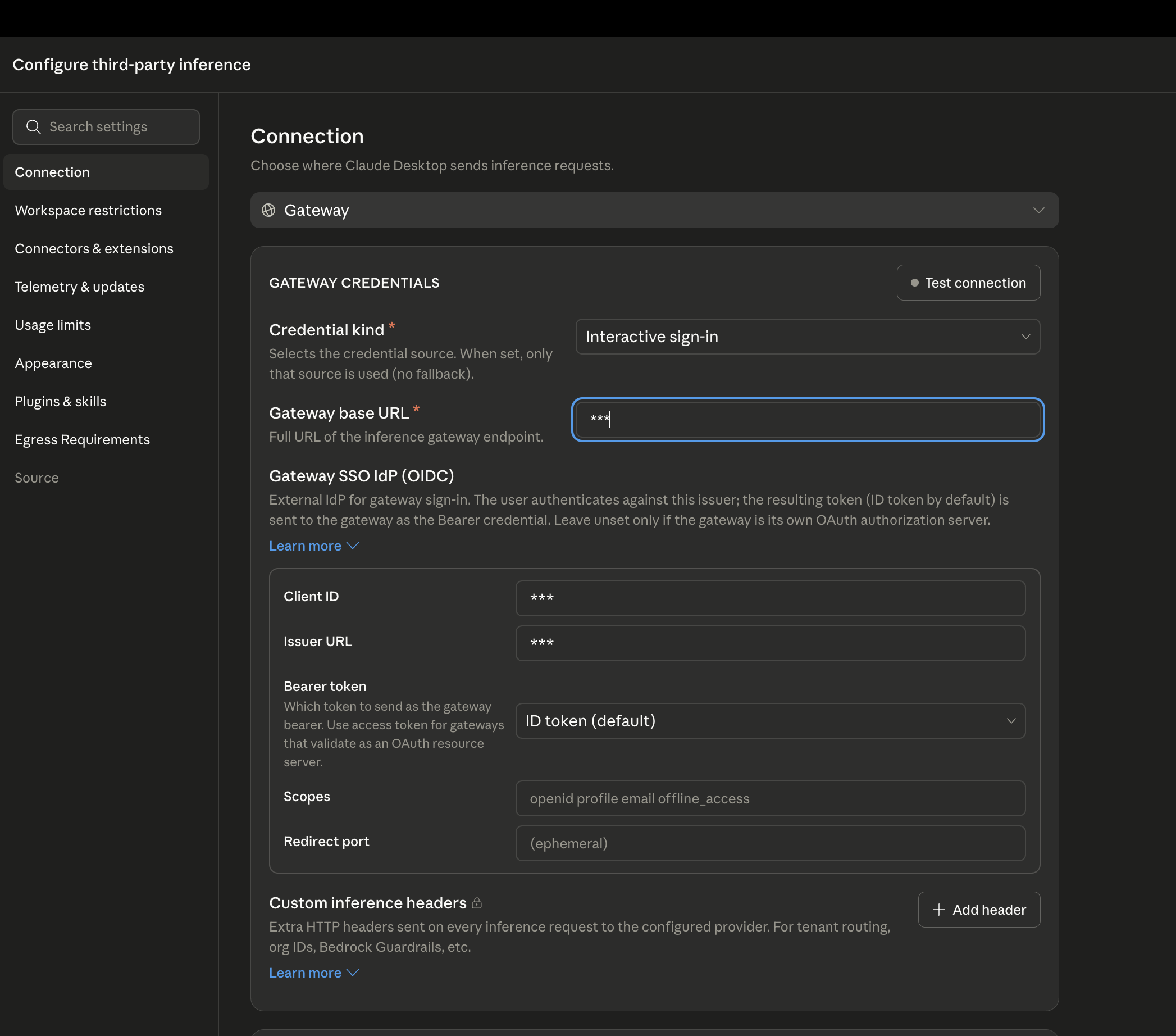
Authorization: Bearer <token> on every request, refreshing it in the background. Bifrost checks the token’s signature and issuer against your SSO configuration, and its audience where that configuration defines one. It then attributes the request to the user and applies the user’s access profile, budgets, and rate limits.
Before you start
- Bifrost Enterprise, with SSO configured. The token must come from the same identity provider.
enforce_auth_on_inferenceis on. With it on, a user Bifrost hasn’t seen before is provisioned on their first request, the same way a dashboard login provisions them, and a user whose claims map to no role is refused. With it off, first-time users aren’t provisioned, and a request whose token fails validation is let through without an identity.
Microsoft Entra ID
Microsoft Entra ID
Use the app registration Bifrost already uses for SSO, so the token’s audience is Bifrost’s own client ID:
- In the Microsoft Entra admin center, open App registrations and select the app Bifrost uses for SSO.
- Under Authentication, select Add a platform → Mobile and desktop applications, and add the custom redirect URI
http://127.0.0.1/callback. Use127.0.0.1(notlocalhost) and include/callback. This platform allows any local port, which Claude Desktop needs because it picks a free port at sign-in. - In Claude Desktop, set Client ID to the app’s Application (client) ID and Issuer URL to
https://login.microsoftonline.com/<tenant-id>/v2.0. Leave Redirect port empty.
Okta
Okta
Okta doesn’t allow one app to be both a Web app and a Native app, so create a separate Native application for Claude Desktop:
- In the Okta Admin Console, create an OIDC - OpenID Connect app of type Native Application, with the Authorization Code and Refresh Token grant types.
- Pick a fixed port, for example
53180, and add the sign-in redirect URIhttp://127.0.0.1:53180/callback. Okta matches redirect URIs exactly, including the port. - Assign the app to the same users and groups as your Bifrost SSO app, and add the same groups claim, so role and team mapping resolve the same way.
- In Claude Desktop, set Client ID to the Native app’s client ID, Issuer URL to your Okta issuer (for example
https://<your-org>.okta.com, not the/.well-known/openid-configurationURL), and Redirect port to53180.
Other OIDC providers
Other OIDC providers
Register a public (native) client with the authorization code grant and PKCE, and the redirect URI
http://127.0.0.1:<port>/callback (set the same port as Redirect port if your provider needs an exact match). Use the issuer of the IdP configured in Bifrost. If your Bifrost SSO configuration sets an audience, the token’s audience must match it; by default, the ID token’s audience is the client ID you register here.
Click Apply Changes, then Save & Restart. Users then see Sign in to your organization, sign in through the browser, and return to the app. If the session expires or is revoked under your IdP’s policy, the app prompts them to sign in again.
See Anthropic’s single sign-on guide for the full reference.
Why You Only See Anthropic Models
When you list models through the gateway, you’ll notice that only Claude-family models show up in Claude Desktop — even though Bifrost is configured with models from many providers. This is expected. Claude Desktop deliberately displays only its own Claude-family models, and quietly hides everything else returned by the gateway. It is a client-side decision made by the Claude Desktop app — it is not a limitation or misconfiguration on the Bifrost side. Bifrost returns every model you’ve allowed (you can confirm this by calling its list-models endpoint directly); the app simply chooses not to show the non-Claude ones in its picker. If you need to use non-Claude models from Bifrost in Claude tooling, route through the Code tab instead (configured in the Setup section above), where model tiers can be pinned or aliased to any provider.MCP Integration (Chat Tab)
The Chat tab supports MCP servers configured inclaude_desktop_config.json. Connect to Bifrost’s MCP endpoint to give the Chat tab access to all your aggregated MCP tools:
Config file locations:
- macOS:
~/Library/Application Support/Claude/claude_desktop_config.json - Windows:
%APPDATA%\Claude\claude_desktop_config.json
MCP servers in
claude_desktop_config.json are for the Chat tab only. For MCP in the Code tab, configure servers in ~/.claude.json or your project’s .mcp.json file. See MCP Gateway for full setup details.Behind a VPN or Private Network (MCPB)
ThemcpServers config above only works if Claude Desktop’s connector infrastructure can reach your Bifrost host directly. If Bifrost’s /mcp endpoint is only reachable from inside a VPN or private network, a direct connection won’t work - Claude Desktop’s remote connectors are proxied through Anthropic’s server-side infrastructure, which has no route into your private network.
The fix is to package a local proxy as an MCPB (MCP Bundle) extension. Unlike remote connectors, an MCPB runs locally on your machine via stdio, so it has the same network access as any other process on your laptop - including your VPN. It bridges Claude Desktop to Bifrost’s MCP endpoint using mcp-remote as a stdio-to-HTTP proxy, handling the OAuth login and token refresh against Bifrost for you.
1. Install the MCPB CLI:
manifest.json describing the extension and a package.json pulling in mcp-remote:
manifest.json
package.json
mcp-remote refuses to connect to any non-HTTPS, non-local URL unless you explicitly opt out.If your Bifrost deployment is only reachable over plain http:// (e.g. a trusted, network-isolated VPN segment) and you still need to point at it, add --allow-http to mcp_config.args in manifest.json:bifrost-mcp.mcpb file - a single portable archive.
4. Install it in Claude Desktop by double-clicking the .mcpb file (or via Settings → Extensions → Advanced settings → Install Extension…). Confirm the server_url, then grant permissions. On first use it opens your browser to complete OAuth login against Bifrost; tokens are cached locally under ~/.mcp-auth.
To skip the OAuth browser flow entirely and authenticate with a Bifrost virtual key instead, pass it as a static header using Marking the field
mcp-remote’s --header flag. Add a virtual_key field to user_config and reference it from mcp_config.args:sensitive: true masks it in the Claude Desktop extension settings UI. With a valid Authorization header present, mcp-remote connects directly and never opens a browser for OAuth.Enterprise Deployment
For organization-wide Bifrost routing, deploy amanaged-settings.json file via MDM (Jamf, Kandji, Intune):
- macOS:
/Library/Application Support/ClaudeCode/managed-settings.json - Windows:
C:\Program Files\ClaudeCode\managed-settings.json
Observability
All Claude Desktop Code tab requests through Bifrost are logged. Monitor them athttp://localhost:8080/logs - filter by provider, model, or search through conversation content to track usage patterns across your organization.
Next Steps
- Provider Configuration - Configure AI providers in Bifrost
- Virtual Keys - Set up usage limits and access control
- Built-in Observability - Monitor all AI traffic
- MCP Gateway - Full MCP server setup and tool filtering